Home > Courses > Introduction To Windows And Linux Operating System (VU-CYB 201) > Windows User Interface and Navigation
Windows User Interface and Navigation
Subject: Introduction To Windows And Linux Operating System (VU-CYB 201)Introduction
The Windows User Interface (UI) is the graphical workspace through which users interact with the operating system. It consists of visual elements such as the desktop, windows, icons, taskbar, Start Menu, settings panels, and file navigation tools. Mastery of UI navigation is essential for productivity, system administration, and software usage.
Desktop Environment
The Desktop Environment is the primary workspace displayed after Windows boots. It serves as the user’s main interaction area for launching applications, accessing files, and managing system tools.
Key Components of the Desktop
• Wallpaper / Background
• Icons (This PC, Recycle Bin, Folders, Shortcuts)
• Taskbar
• System Tray / Notification Area
• Gadgets & Widgets (newer Windows versions)
Functions of the Desktop
• Launch point for applications
• File and folder access
• Notification display
• Quick access to system tools
(See Image 1 and 2)
Practical Activity
- Change desktop background
- Create a new folder on the desktop
- Add and remove desktop shortcuts
Taskbar and Start Menu
The Taskbar is a horizontal bar usually located at the bottom of the screen. It provides quick access to running and pinned applications.
Main Elements of the Taskbar
• Start Button
• Pinned Applications
• Running Programs
• System Tray (clock, network, battery, sound)
• Notification Center
Functions
• Application switching
• System monitoring
• Access to system notifications
• Quick launch of programs
Start Menu
The Start Menu is the central access point for:
• All installed programs
• Power options (Shut down, Restart, Sleep)
• Settings
• User profile
• Search function
(See Image 3)
Practical Activity
- Pin and unpin applications
- Search for an installed program
- Shut down and restart using the Start Menu
Window Management
Window management refers to controlling how application windows appear and behave on the screen.
Basic Window Controls
• Minimize – Hides the window to the taskbar
• Maximize – Expands to full screen
• Restore Down – Returns to original size
• Close – Terminates the application
Advanced Window Management
• Snap Assist – Align windows side-by-side
• Alt + Tab – Switch between open programs
• Task View – View all running windows
• Resizing and Dragging
Importance
• Enhances multitasking
• Improves workflow efficiency
• Enables comparison of documents
Practical Activity
- Open 3 applications and snap them
- Switch using Alt + Tab
- Resize and reposition windows
Control Panel vs Settings
Control Panel
The Control Panel is the traditional administrative interface used for advanced system configuration.
Examples of Control Panel Functions
• User Accounts
• Programs and Features
• Network Settings
• Device and Printer Management
• System Properties
Settings
The Settings App is the modern configuration interface introduced to simplify system control.
Examples of Settings Categories
• System
• Devices
• Network & Internet
• Privacy & Security
• Windows Update
(See image 5 and 6)
File Explorer
File Explorer is the built-in file management tool in Windows used to create, organize, copy, move, rename, and delete files and folders.
Main Components
• Navigation Pane
• Address Bar
• Search Box
• File List Pane
• Ribbon / Command Bar
Key Functions
• File creation and deletion
• Copy, cut, paste, move
• Search for files
• View file properties
• Access external storage (USB, HDD)
Common File Operations
• New Folder: Right-click → New → Folder
• Copy: Ctrl + C
• Paste: Ctrl + V
• Rename: F2
• Delete: Delete key
Practical Activity
- Create a folder with sub-folders
- Move files between folders
- Search for a file by name
(See image 7 and 8)
Virtual Desktops
Virtual Desktops allow users to create multiple desktop workspaces on a single physical computer system.
Functions
• Separates different tasks (e.g., study, programming, design)
• Reduces screen clutter
• Improves multitasking efficiency
How to Use
• Open Task View: Windows + Tab
• Add New Desktop: Click “New Desktop”
• Switch Desktops: Ctrl + Windows + Left/Right Arrow
Practical Activity
- Create two virtual desktops
- Open different applications on each
- Switch between them
(See image 9)
Summary
The Windows User Interface and Navigation system provides the visual and functional environment for interacting with the operating system. The Desktop Environment serves as the main workspace, the Taskbar and Start Menu control application access and system operations, Window Management supports multitasking, Control Panel and Settings enable system configuration, File Explorer handles file management, while Virtual Desktops improve workspace organization. Mastery of these tools is essential for every tertiary-level computing student.
Image 1
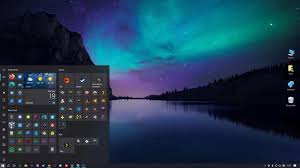
Image 2
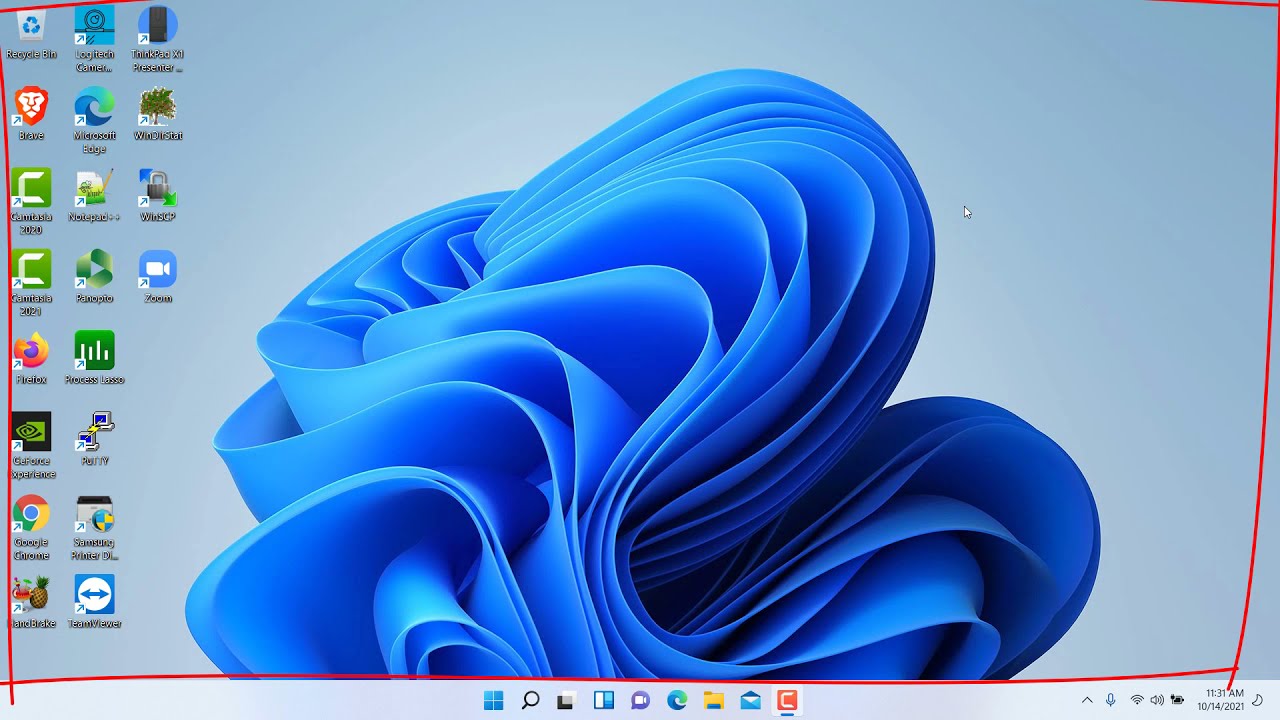
Image 3
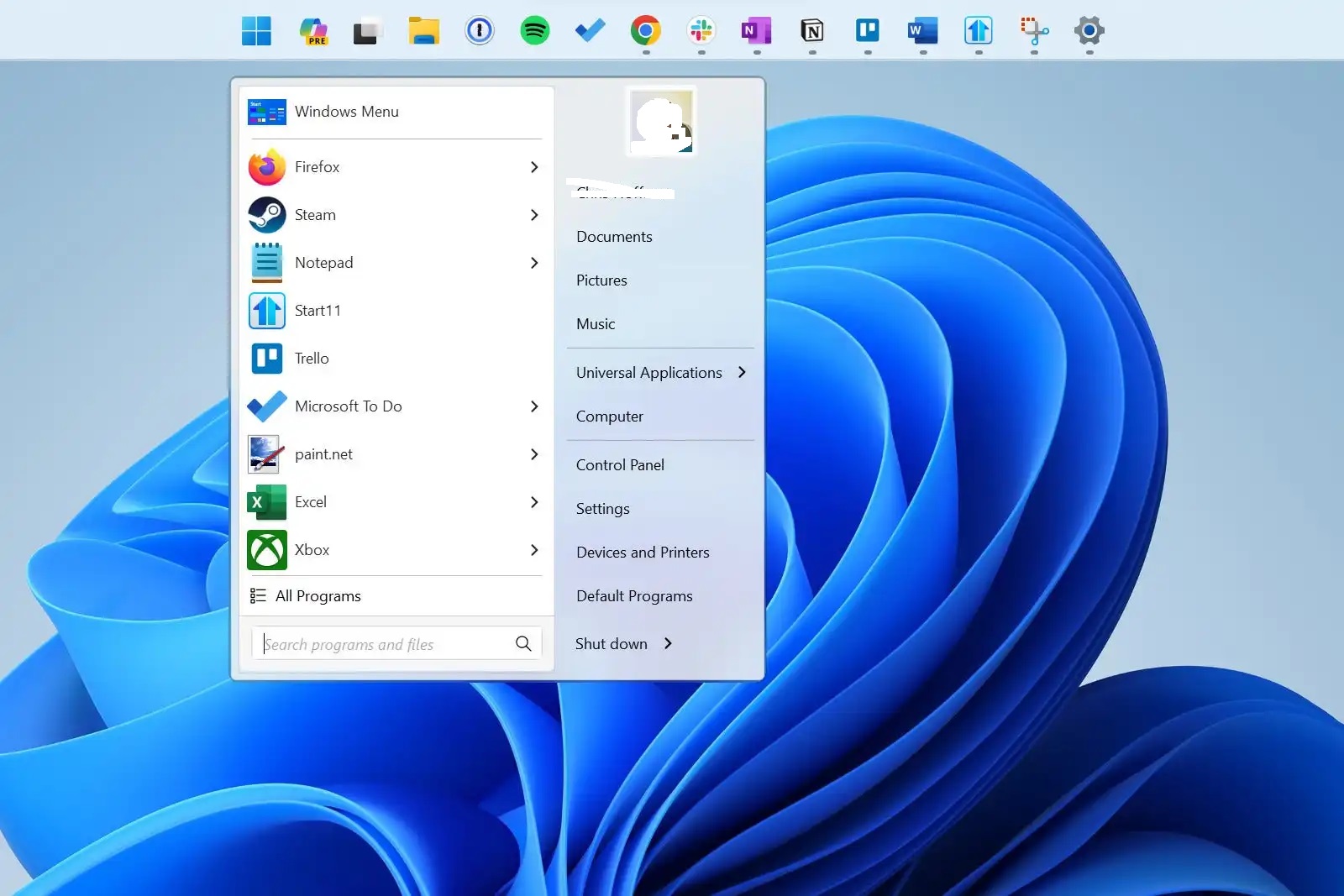
Image 4
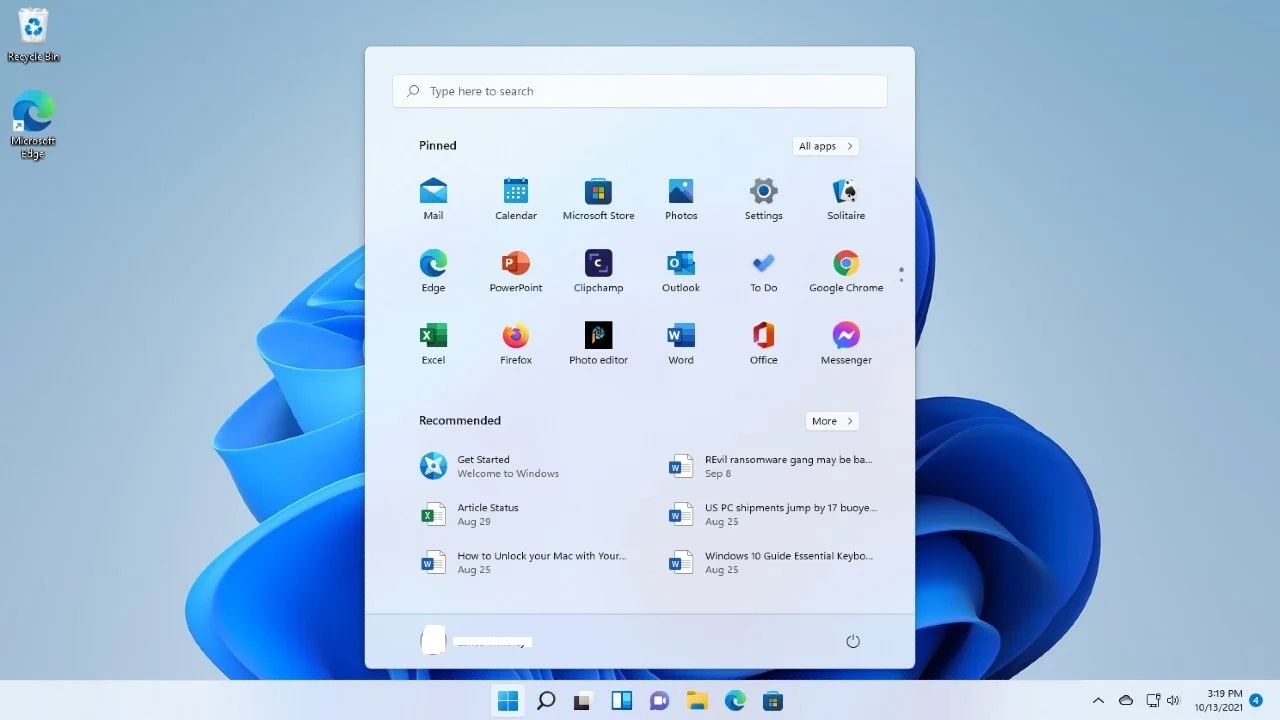
Image 5
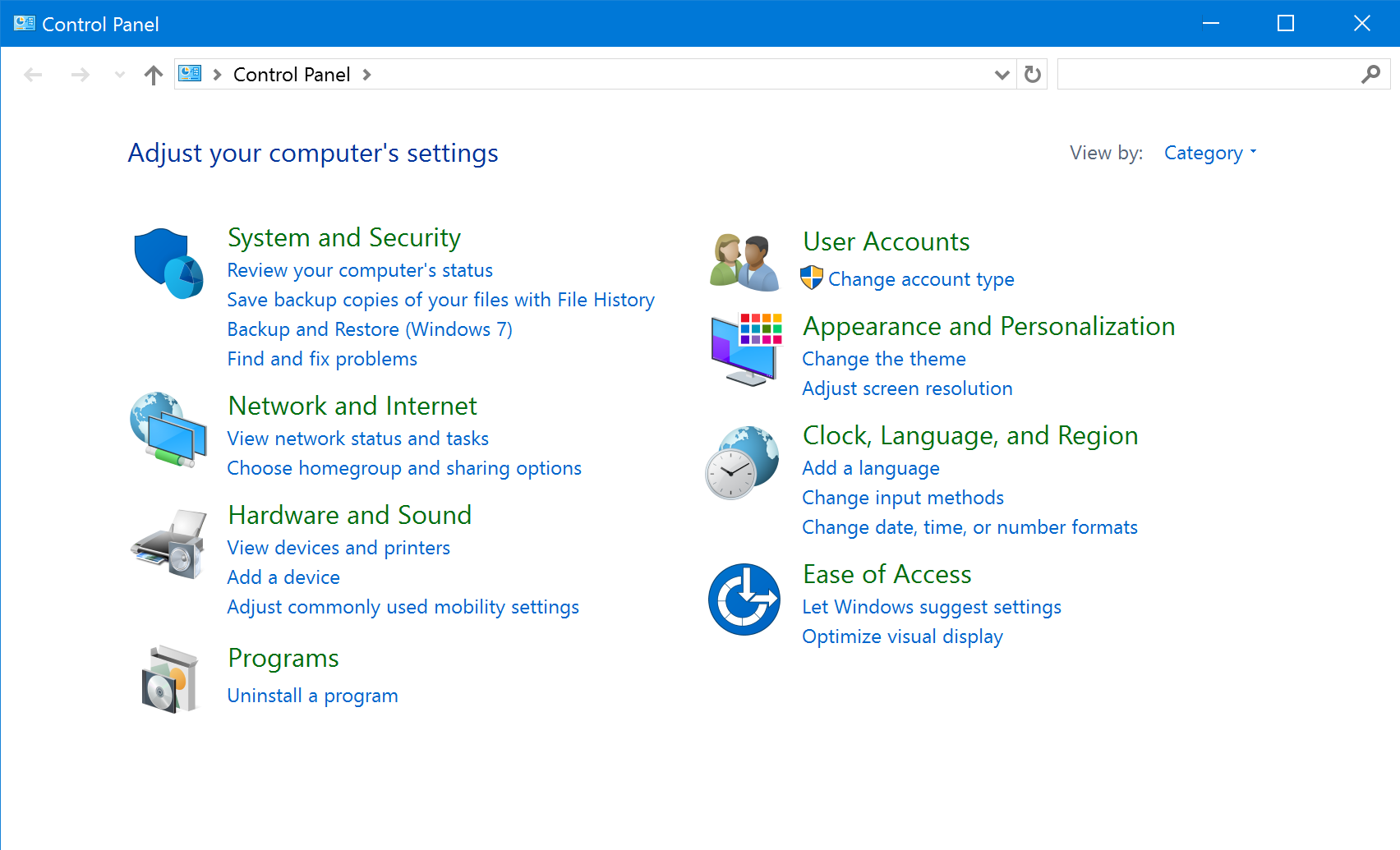
Image 6

Image 7

Image 8
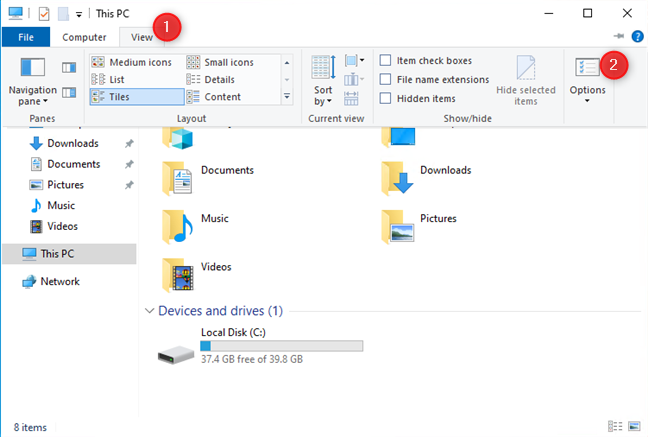
Image 9

By: Vision University
Comments
No Comment yet!
Login to comment or ask question on this topic
Previous Topic
- 1 What is an Operating System
- 2 Difference between Windows OS and Linux OS
- 3 Introduction to the Windows Operating System
- 4 Windows User Interface and Navigation