Getting Started with Pygame
Subject: Game Design Development (VU-CSC 224)Installing Python and Pygame
To begin working with Pygame, you first need to install Python on your computer. Python is the programming language used to write Pygame code.
- Download from python.org → Downloads
- Choose the latest stable version (e.g., 3.12)
- During installation, check Add Python to PATH
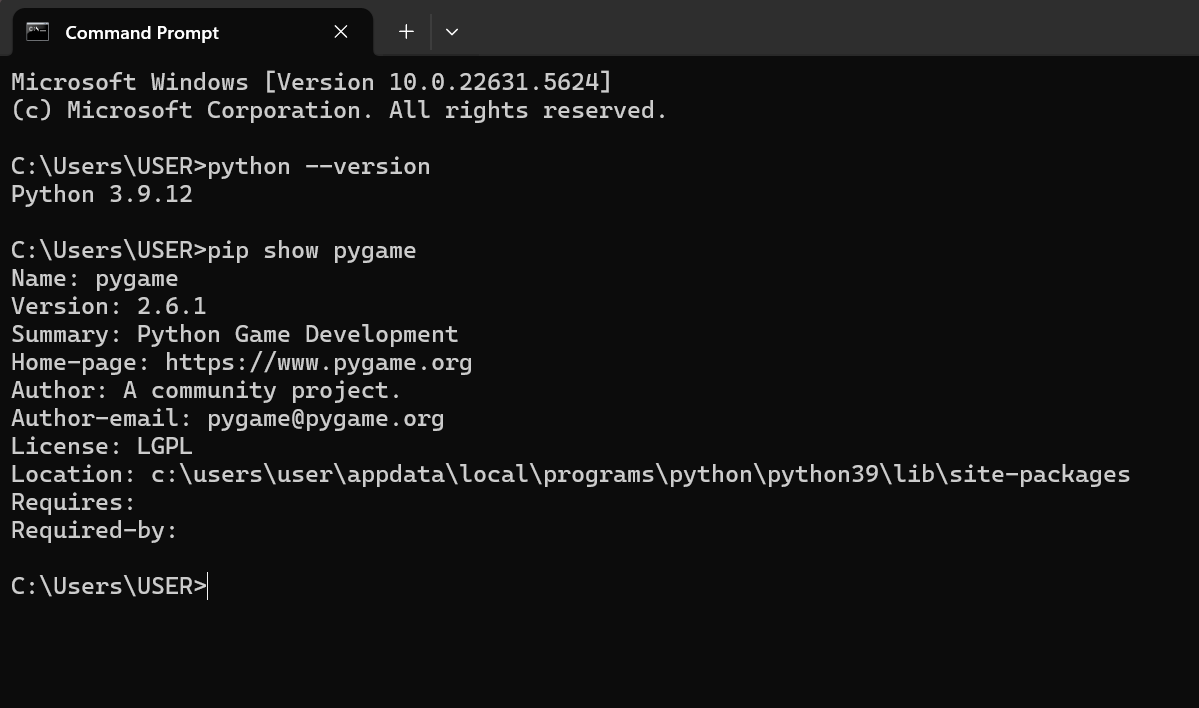
- Verify installation: open terminal and type python --version
After installing Python, you can install Pygame using the command line or terminal by typing.
- Use the terminal or command prompt
- Run: pip install pygame
- Verify installation: pip show pygame
- If errors occur, ensure pip is updated: python -m pip install --upgrade pip
Creating a Window and Displaying Text/Images
Once Pygame is installed, the next step is to create a game window where everything will be displayed. This window acts as the screen for your game. Using Pygame functions, you can set the size of the window and give it a title. After creating the window, you can display elements such as text and images. Text can be shown using fonts, while images (like characters or backgrounds) can be loaded and drawn onto the screen. This is how the visual part of a game begins to take shape.
Create a Game Window
Every game needs a window where graphics are displayed.
Open your code editor (VS Code, PyCharm, or IDLE)
- Import pygame: import pygame
- Initialize: pygame.init()
- Create window: screen = pygame.display.set_mode((800, 600))
- Set title: pygame.display.set_caption("My First Game")
Display Text and Images
Learn how to render text and load images.
- Create font: font = pygame.font.Font(None, 36)
- Render text: text = font.render("Hello, Pygame!", True, (255,255,255))
- Load image: image = pygame.image.load("player.png")
- Draw on screen: screen.blit(text, (50,50)) and screen.blit(image, (100,100))
Understanding the Game Loop (Event Handling, Updating, Rendering)
The game loop is the core of every Pygame program. It is a continuous loop that keeps the game running until the player exits. Inside this loop, three important processes take place. First is event handling, where the program checks for user inputs such as keyboard presses or mouse clicks.
Next is updating, where the game logic is processed—for example, moving a character or checking for collisions. Finally, rendering happens, where all the updated graphics are drawn to the screen. This loop runs repeatedly at high speed, creating smooth motion and interaction in the game.
The game loop keeps the game running, handling input and updating graphics.
-Event Handling: for event in pygame.event.get(): → check for quit or key presses
- Updating: change positions, scores, or states
- Rendering: redraw everything each frame with pygame.display.flip()
- Loop continues until user quits
import pygame

# Initialize Pygame
pygame.init()

# Create window
screen = pygame.display.set_mode((800, 600))
pygame.display.set_caption("My First Game")

# Font and text
font = pygame.font.Font(None, 36)
text = font.render("Hello, Pygame!", True, (255, 255, 255))

# Load image (make sure player.png is in the same folder)
image = pygame.image.load("player1.png")

# Game loop
running = True
while running:
    for event in pygame.event.get():
        if event.type == pygame.QUIT:
            running = False

    # Draw background
    screen.fill((0, 0, 0))

    # Draw text and image
    screen.blit(text, (50, 50))
    screen.blit(image, (100, 100))

    # Update display
    pygame.display.flip()

pygame.quit()
Adding Player Movement
1. Define Player Position: add variables to track where the player is on the screen:
x = 100
y = 100
speed = 5  # pixels per frame
2. Handle Keyboard Input: inside your game loop, after processing events, check which keys are pressed:
keys = pygame.key.get_pressed()
if keys[pygame.K_LEFT]:
    x -= speed
if keys[pygame.K_RIGHT]:
    x += speed
if keys[pygame.K_UP]:
    y -= speed
if keys[pygame.K_DOWN]:
    y += speed
3. Update the Drawing Section: replace the fixed coordinates with your variables:
screen.blit(image, (x, y))4. Add boundaries so the player doesn’t walk off‑screen:
x = max(0, min(x, 800 - image.get_width()))
y = max(0, min(y, 600 - image.get_height()))
Updated Code
import pygame

pygame.init()

screen = pygame.display.set_mode((800, 600))
pygame.display.set_caption("My First Game")

font = pygame.font.Font(None, 36)
text = font.render("Hello, Pygame!", True, (255, 255, 255))

image = pygame.image.load("player1.png")

#Define Player Position
x, y = 100, 100
speed = 5
clock = pygame.time.Clock()

running = True
while running:
    for event in pygame.event.get():
        if event.type == pygame.QUIT:
            running = False

   #Handle Keyboard Input
    keys = pygame.key.get_pressed()
    if keys[pygame.K_LEFT]:
        x -= speed
    if keys[pygame.K_RIGHT]:
        x += speed
    if keys[pygame.K_UP]:
        y -= speed
    if keys[pygame.K_DOWN]:
        y += speed

    # Boundaries: keep player inside the window
    x = max(0, min(x, 800 - image.get_width()))
    y = max(0, min(y, 600 - image.get_height()))

    screen.fill((0, 0, 0))
    screen.blit(text, (50, 50))
   #Update the Drawing Section
    screen.blit(image, (x, y))
    pygame.display.flip()

    clock.tick(60)

pygame.quit()
Run the program
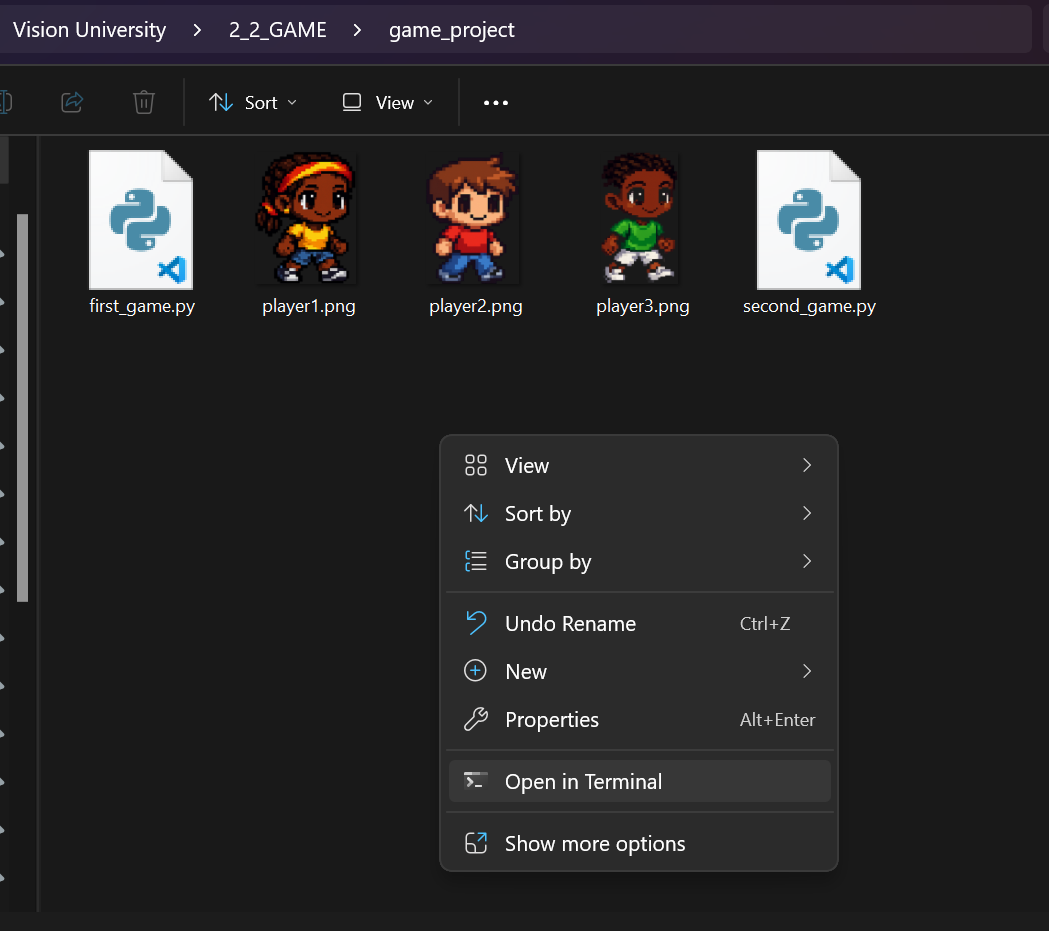
1. Open the game folder in the Terminal
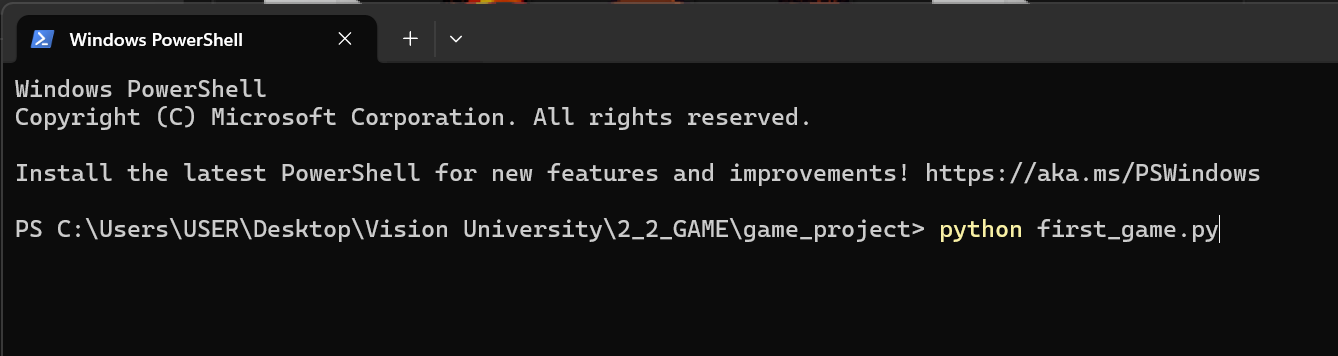
2. Run using: python file_name.py
Check if install
Open the game folder in the Terminal
python first_game.py
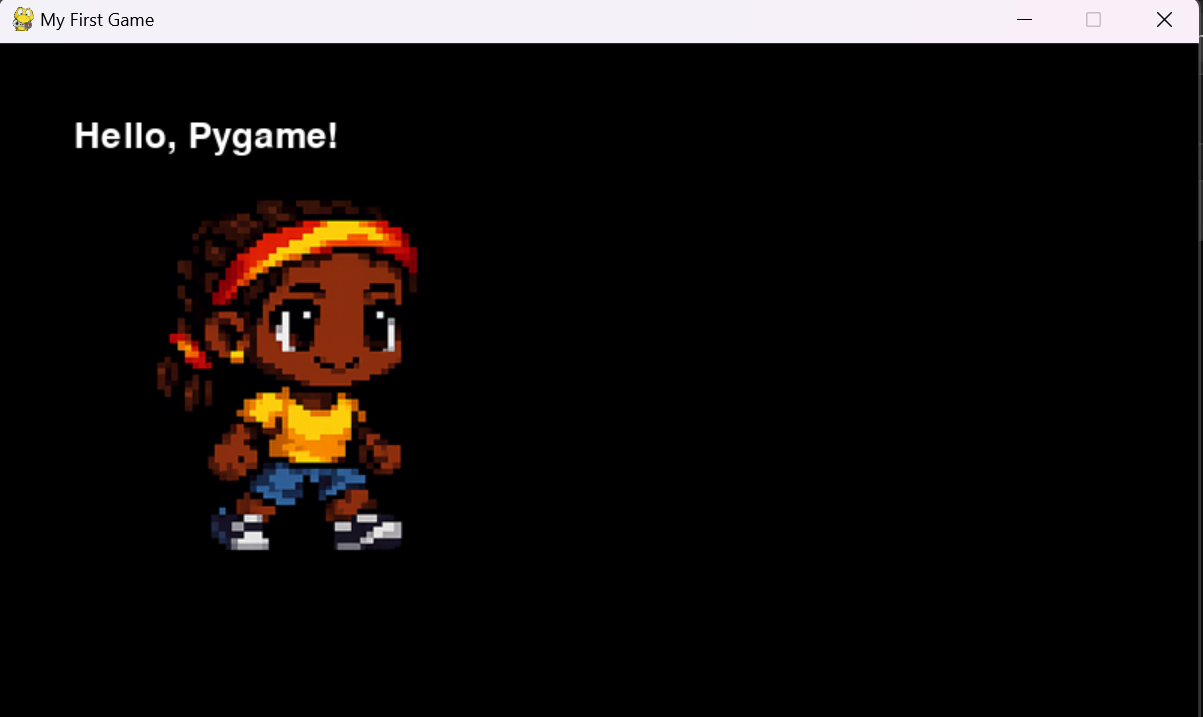
Game running
By: Vision University
Comments
Ocho Philip (learner)Date commented: 28-Jun-2026 03:06:56am
Ocho Philip (learner)
Date commented: 28-Jun-2026 03:07:56am
Oke Oluwatunmise (learner)
Date commented: 30-Jun-2026 08:28:03am
Login to comment or ask question on this topic
Previous Topic